ROLSS STUDIO / BUYER GUIDE
Start Here
Make it your studio.
Demonstration template. People and projects are fictional unless licensed demonstration footage is explicitly credited. Replace sample content and business/legal details before launch. Both forms start in Demo mode and do not accept inquiries. Keep Demo enabled on a public template preview; configure and test your own destination for a client website.
01 / Start with your identity
To change the shared identity, select a Folio page, open Style, and choose Edit in the Template section. In Folio shared layout, open Variables and edit the Default for Header Name or Header Descriptor. These defaults apply to pages that inherit them. Page Style controls can override the identity locally; right-click a property label and choose Reset to default to restore inheritance. Header Graphic Logo supplies the logo asset; Header Logo Label names the Home link. Check both header and footer. If Preview retains an older value, close it and reopen it from the editor; Reload alone can retain stale content. Replace fictional names, projects and proof with verified information, or hide optional content. Check Contact details, copyright and metadata separately.
02 / Shape the site
The seven native collections are Productions, People, Services, Articles, Categories, Clients and Testimonials. Edit records and their relationships in Framer CMS. Keep Categories scoped to the intended archive. When adding or renaming films, filmmakers or services, update film/person dropdown labels and values, plus both Service:slug checkbox names and visible service captions, at desktop, tablet and phone. Match the CMS slugs and keep the empty select placeholder. Editing CMS alone does not update those form choices. Folio Work also uses the native Folio Category, Folio Search and Folio View page variables. Editorial, Grid and List share the filters. Edit the View buttons and view groups in Layers. Keep All films set to Reset Variables followed by Set Folio View to Editorial; Reset alone clears the view.
03 / Add your media
Project and journal images stay visible. Edit Poster, Portrait and Cover in native CMS, including alternative text. Productions uses Main Video URL, Vertical Video URL and Square Video URL for distinct supplied files; Legacy link fields are unused. The first sample project and Home demo film use an approved seven-second Tears of Steel excerpt, Blender Foundation, CC BY 3.0, with source and change notices. This is licensed player demonstration footage, not a Stillhaven production or evidence for the fictional case study. Keep the attribution in Home, Summary, Story and Credits while retaining this clip. Replace those notices truthfully when supplying your own media. Home: Folio intro actions → Folio Home showreel → Video URL and Poster. Clear the URL to omit it. Matched grading images remain a separate optional supply requirement.
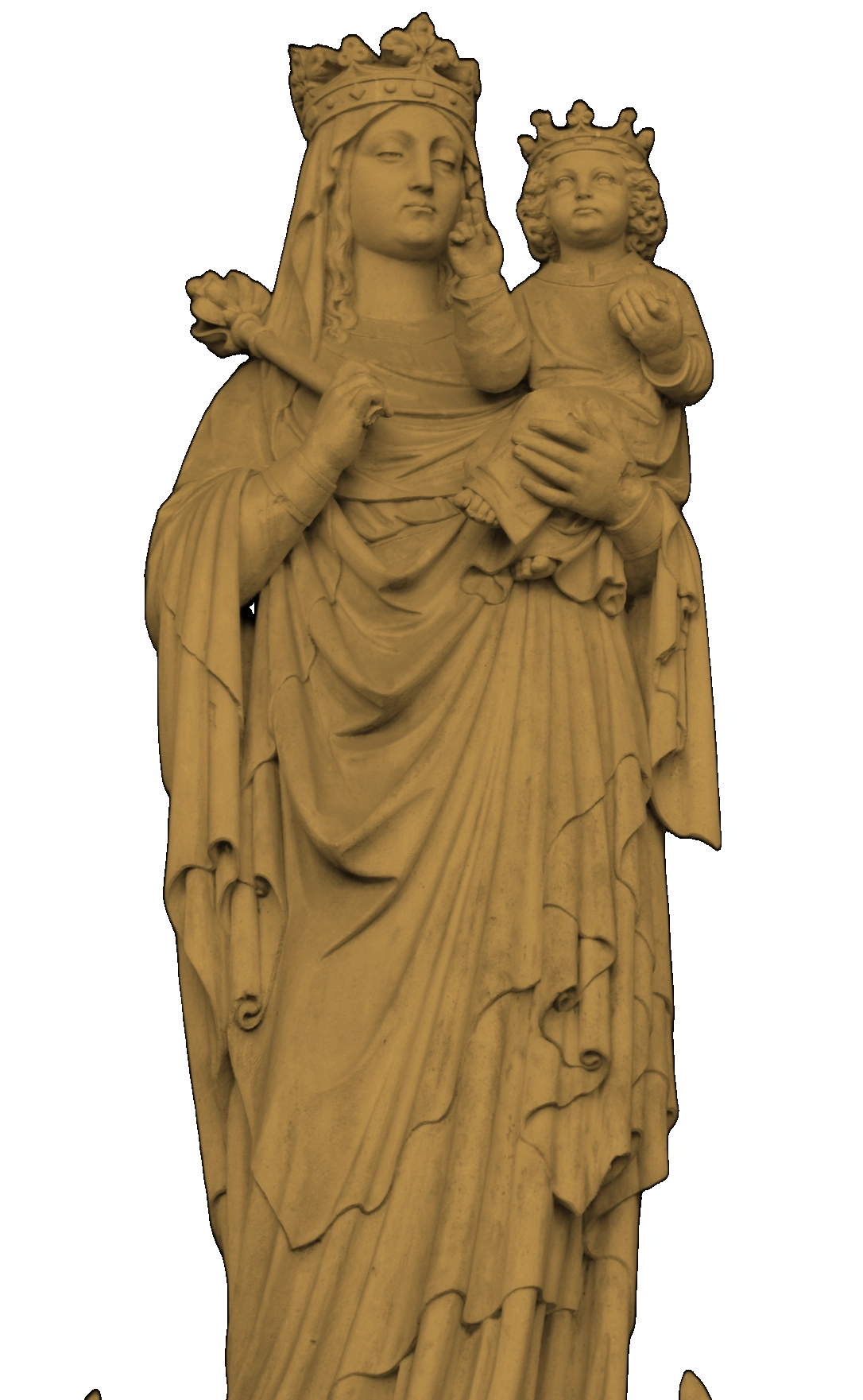
For statue relighting, select the configured Rolss Light Studio background. Photo, Foreground mask, Depth and Static fallback must describe the same aligned scene. Use the supplied prepared scenes or replace all four together. A new arbitrary photograph can require preparation outside Framer; changing Photo alone is not enough. Keep Engine file and the aligned scene library configured. Adjust Gold light, material, brightness, radius, elevation, relief, framing and offsets in native properties. Photo idle % and Photo focus % on Folio light transfer control photograph brightness on this page without code. Their defaults are 25.92 and 100; images remain opaque. These controls apply on mouse devices; touch and reduced motion retain the static presentation. Preview sliders are a local tuning aid; apply chosen values in the editor and verify each breakpoint. No new AI processing is required for the included prepared scenes.
04 / Configure inquiries
Start a project uses one native form with five mounted steps; Contact uses a short native form. Select brief-native-form or contact-form in Layers and configure Framer Send To with your own email, Google Sheet or HTTPS webhook. Never retain a creator destination. Each form contains a hidden input named Delivery mode, initially demo. Keep its Name unchanged, keep Hidden on and Visible on, and set its Value to live only after configuring your destination. Check the value at Desktop, Tablet and Phone; a local override can differ. Missing, duplicated or other mode values keep submission disabled. No code editing is needed. Refresh Preview after changing mode. In private creator QA, fictitious payloads from both forms were received, with native sending/success states and an invalid-destination error observed. Those checks do not configure or certify your destination. Before launch, test your own receipt, all-step payload, failure/retry and repeat submissions. Replace the native Demo notice text when enabling Live. Leave demo active in the public template demonstration.
05 / Change the visual direction
The Folio candidate uses the native Folio text styles and Folio Foreground, Muted and Accent colors. These are separate from the original Rolss styles. Media plate, Editorial and Credits are the three principal reusable content structures; edit their native controls rather than rebuilding every page. Article illustrations are a Media plate variant. Existing Gold button material and legacy inline-link styles are separate, so a color-token change is not a complete button or whole-site recolor. Desktop chapters pair their content; phone layouts flow vertically over the same fullscreen background, with fixed illumination. Recheck long titles, missing images and real text at every breakpoint after editing.
06 / Prepare privacy and terms
Complete the bracketed fields in Privacy and Terms using your actual form destinations, providers, retention and business details. Check any analytics, cookies and embedded media in the deployed site. The sample pages do not certify legal compliance.
07 / Check your Framer plan
The complete template uses seven CMS collections. At the October 2026 pricing check, Basic supports only two and cannot publish this full CMS setup. Choose a plan supporting at least seven collections, then check its current page, item, upload and bandwidth limits. Hosting is a separate buyer cost. No paid plan is activated by this template.
08 / Validate before launch
Preview real content on desktop, tablet and phone. Test archive filters, all detail links, empty records, contextual brief entries, keyboard focus, form delivery and error recovery. Verify unknown-path 404 behavior on the final hosting setup. Publication, marketplace listing and buyer remix acceptance remain separate release gates. This private draft has site and page indexing disabled. Before an approved launch, enable indexing only for the intended public pages; keep Start Here, Styleguide and 404 excluded. Inspect native CMS page metadata bindings: dedicated SEO Title and SEO Description fields are not connected automatically. Verify actual public metadata and indexing after launch.